
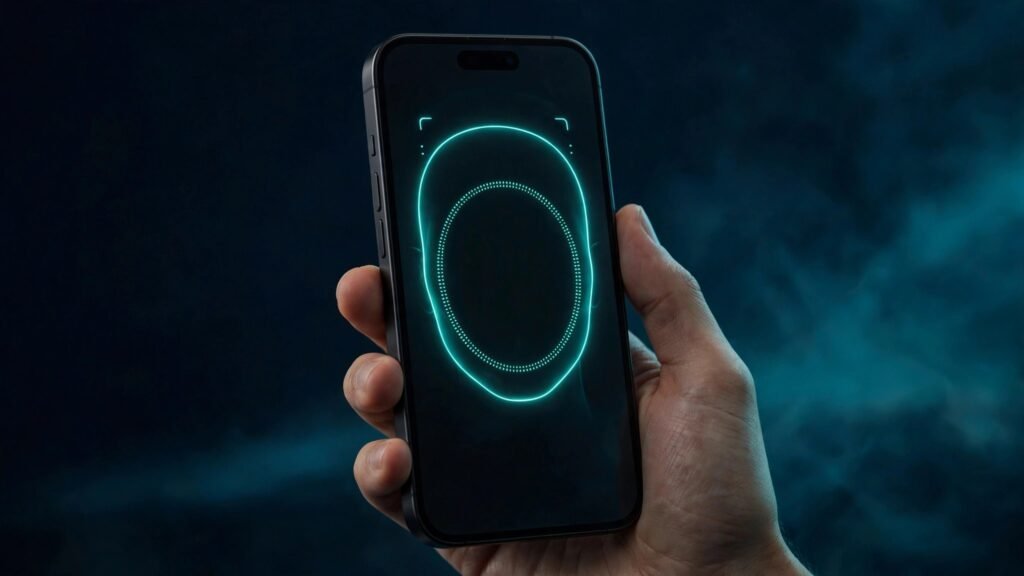
When iPhone Face ID stops working, first check what the phone is telling you. If it shows “Face ID is not available” or “A problem was detected with the TrueDepth Camera. Face ID has been disabled,” the TrueDepth system has failed a self-check — a hardware or calibration fault no settings toggle will fix. If Face ID simply fails to recognise you and asks for the passcode instead, the camera works and the fault is almost always software, a setting, or something covering the sensor.
Here is the split most guides skip: a passcode request right after a restart is not a Face ID failure — Apple requires the passcode after restarting, five failed matches, and long periods without an unlock. So a phone that asks for the passcode once in the morning and then unlocks with a glance all day was never broken. Fixes 1 to 3 are the two-minute checks, 4 to 6 fix the software side, 7 reads the hardware alert, and 8 is the service route.
1. Rule Out the Times a Passcode Is Normal
Before changing anything, check whether Face ID is actually failing or just standing aside. Unlock with your passcode, lock the screen, then try Face ID once in portrait with your face fully visible. If it works now, nothing is broken: Apple requires the passcode after a restart, five unsuccessful matches, 48 hours without an unlock, or starting power-off or Emergency SOS.
If Face ID fails only inside one app — a banking app, for example — while the lock screen still unlocks with a glance, the problem is that app, not Face ID. The app-specific steps in iPhone Apps Crashing After iOS Update cover checking its settings and reinstalling it cleanly. If Face ID fails everywhere, keep going.
2. Clean the TrueDepth Camera and Uncover It
The TrueDepth camera sits at the top of the screen and needs a clear view of your face. Wipe the sensor area with a soft, lint-free cloth — a fingerprint or makeup smear over the sensors is the single most common cause, and it looks exactly like a software fault. Then check for a case that sits too high, or a screen protector whose cutout is misaligned.
On iPhone 18 Pro models the TrueDepth camera sits toward the top-left corner, so check that area. Face ID works in portrait and landscape on iPhone 13 and later, but only when the camera is uncovered — so keep a finger or palm off the sensor when you hold the phone sideways.
3. Check Face ID Settings and the Feature Toggle
Go to Settings > Face ID & Passcode and enter your passcode. First confirm Face ID is actually set up — if the screen offers “Set Up Face ID” instead of enrolled features, an update or reset cleared your enrolment, and you need Fix 6, not a repair. Then check the toggles under “Use Face ID For” — iPhone Unlock, Apple Pay, iTunes & App Store, and Password AutoFill are separate switches, and an update can leave one off while the rest work.
If a toggle is greyed out, or the whole Face ID section is missing, go to Fix 7 — that usually means the TrueDepth system has reported a fault.
4. Restart, Then Install the Latest iOS Update
Restart the iPhone: a temporary glitch after an update is a real cause, and Apple lists the restart as its first troubleshooting step in If Face ID isn’t working on your iPhone or iPad Pro. If Face ID works after the restart, the glitch is cleared — but still install any pending update, which may carry the permanent fix.
Go to Settings > General > Software Update and install whatever is pending. As of 9 November 2026 the latest public release is iOS 27.2.1, a bug-fix and security update after iOS 27.2, and earlier iOS 27 updates included Face ID fixes for the new iPhone 18 Pro TrueDepth camera — so a phone not updated since its first setup is a genuine suspect. Install one update, restart, and test Face ID before installing anything else.
5. Fix the Distance, Angle, and What You Are Wearing
Hold the iPhone at arm’s length, 10 to 20 inches (25 to 50 cm) from your face, and look directly at it. Too close, too far, or a sharp angle fails the scan — most “it worked yesterday” cases are a changed grip, not a changed phone. Your eyes, nose, and mouth must be fully visible: Face ID does not work if anything covers your mouth and nose.
Sunglasses can block the TrueDepth system’s infrared light, so test without them. Face ID with a mask needs iOS 15.4 or later, works only in portrait, and needs your eyes unblocked. If Face ID fails only with glasses on, add an alternate appearance while wearing them: Settings > Face ID & Passcode > Set Up an Alternate Appearance.
6. Reset Face ID and Set It Up Again
If the camera is clean, the settings are on, and the software is current, the enrolment itself may be stale — a scan made in different lighting, or before a haircut or weight change, degrades silently. Go to Settings > Face ID & Passcode, tap Reset Face ID, then tap Set Up Face ID and scan again.
Scan in good, even indoor light, face fully visible, no hat, mask, or sunglasses. Move your head slowly in the circle the phone asks for, and complete both scans. Resetting deletes your Face ID data — the mathematical representation of your face — but not your photos or messages.
7. Read the “Face ID Has Been Disabled” Alert Correctly
If your iPhone shows “A problem was detected with the TrueDepth Camera. Face ID has been disabled,” or Face ID keeps asking you to position your face in the frame without completing setup, stop troubleshooting settings — the phone’s own diagnostics have found a fault. This alert appears on iPhone X and later when the TrueDepth system fails its self-check — often after a drop, water exposure, or a screen replacement.
Think back to any recent repair first. The TrueDepth components are tightly paired to the device at the factory, so a screen replacement by anyone other than Apple or an Apple Authorized Service Provider can break Face ID permanently — if the phone was repaired recently and Face ID died at the same time, that is the cause.
8. Get Service — and Do Not Open the TrueDepth System Yourself
If none of the fixes above works, or the disabled alert keeps returning, book service with Apple or an Apple Authorized Service Provider and tell them the exact alert and when it started. Only a trained technician should service the device: the TrueDepth system uses lasers, and improper repair or non-genuine parts can stop the safety mechanisms working and cause hazardous exposure to eyes or skin.
Troubleshooting Notes
- A passcode request after a restart, five failed matches, or starting power-off or Emergency SOS is normal Apple security behaviour, not a Face ID failure. Unlock once, then test Face ID again.
- Face ID works in portrait and landscape on iPhone 13 and later with iOS 16 and later. On earlier models, portrait only.
- Stolen Device Protection can restrict Face ID setting changes away from a familiar location — a security delay there is the feature working, not a fault.
- If Face ID is greyed out in Settings, or the section is missing, that usually signals a hardware fault — skip to Fix 7 instead of reinstalling apps or resetting settings.
- Do not reset all settings or erase the phone to fix Face ID. A Face ID reset (Fix 6) targets the enrolment; a full reset wipes the phone and will not revive a failed TrueDepth sensor.
FAQs
Why is Face ID not working after an iOS update?
An update can clear or corrupt the enrolment, turn off a toggle, or introduce a bug the next update fixes. Restart, check Settings > Face ID & Passcode, install the latest iOS — as of 9 November 2026 that is iOS 27.2.1 — and re-enrol if it still fails.
Why does my iPhone ask for a passcode instead of Face ID in the morning?
Because Apple requires the passcode after a restart and after long periods without an unlock. It is a security rule, not a fault — unlock once and Face ID works again.
Will resetting Face ID delete my photos or data?
No. Resetting Face ID only deletes the enrolment — the mathematical representation of your face stored on the device. Photos, messages, and apps are untouched.
Can a screen protector or case break Face ID?
Yes, if it covers the TrueDepth camera. A misaligned protector, a case that sits too high, or a smudge over the sensor blocks the infrared scan. On iPhone 18 Pro models the camera sits toward the top-left corner — check that spot first.
What does “Face ID has been disabled” mean?
It means the iPhone’s own diagnostics detected a fault with the TrueDepth camera, often after a drop, water exposure, or a non-authorised screen replacement. Settings fixes will not clear it — the phone needs Apple or Apple Authorized Service Provider service.



