
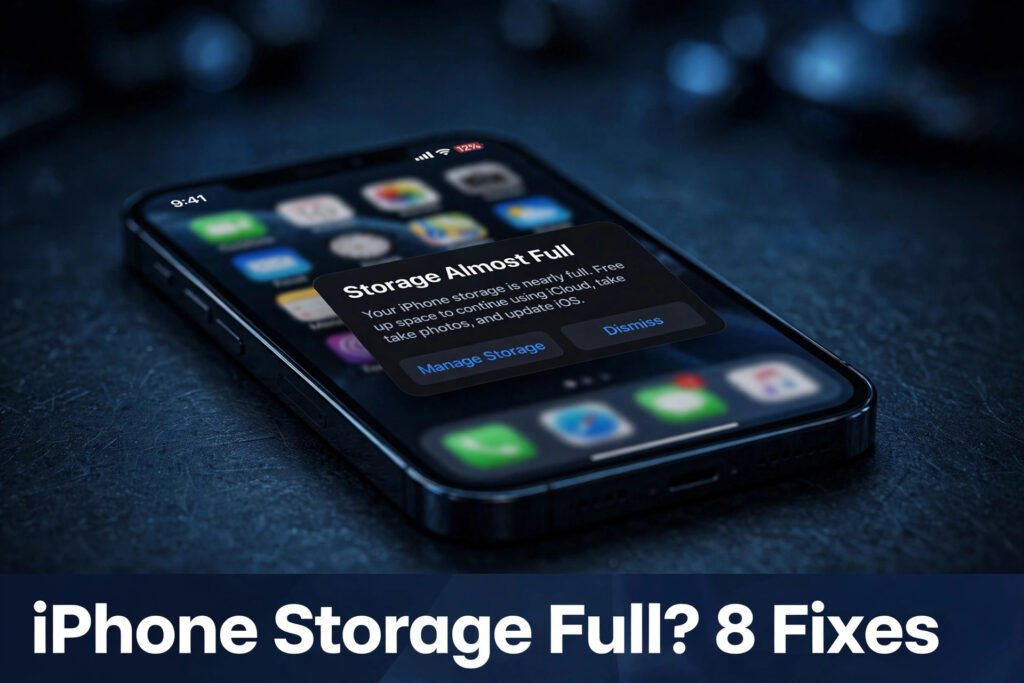
Seeing the “iPhone storage full” warning even though you’ve deleted everything? The space is almost always still occupied by things iOS doesn’t show you clearly: the Recently Deleted photos album, cached app data, old message attachments, or the “Other/System Data” category that balloons when iOS needs a cleanup. The eight fixes below reveal where your gigabytes actually went — and most people recover 5–15GB without deleting anything they care about.
1. Check what’s really using your storage
Before deleting anything else, look at the real breakdown. Go to Settings > General > iPhone Storage and wait for the colored bar and app list to load. These menus are the same on iOS 26 as on earlier versions. This screen tells the truth: exactly how much each app, Photos, Messages, and System Data are using.
Tap any app to see the split between the app itself and its Documents & Data. A social media app that’s 200MB to download but holding 4GB of cached data is a prime suspect — and the fix isn’t deleting your account, it’s clearing that cache (see fix #3). Make a note of the top three space hogs; they’re your targets.
2. Offload unused apps (keep your data)
Offloading removes the app but keeps its documents and data, so you can reinstall later and pick up where you left off. In Settings > General > iPhone Storage, tap any app you rarely use and choose Offload App. The app icon stays on your home screen with a small cloud badge.
Better yet, turn on Offload Unused Apps at the top of the iPhone Storage screen — iOS will automatically offload apps you haven’t opened in a while when space gets tight. Games you finished months ago are the classic win here: they can be 2–5GB each, and offloading keeps your save data intact.
3. Clear Safari and Chrome cache and data
Browsers silently accumulate gigabytes of cached pages, offline data, and website storage. For Safari: go to Settings > Safari > Clear History and Website Data. This clears history, cookies, and cache — you’ll be logged out of websites, but it can free a surprising amount of space.
For Chrome: open the app, tap the three dots > Settings > Privacy and Security > Clear Browsing Data, select Cached Images and Files (and browsing data if you want a deeper clean), and confirm. Do the same for any other browser you use. Heavy browser users often recover 1–3GB here.
4. Delete old messages and large attachments
Messages is a silent storage hog — years of photos, videos, and GIFs sent in chats pile up even if your camera roll is empty. Go to Settings > General > iPhone Storage > Messages to see the breakdown by category: Top Conversations, Photos, Videos, GIFs.
Tap into each category and delete what you don’t need. Even better, stop the pileup: go to Settings > Messages > Keep Messages and change it from Forever to 1 Year or 30 Days. Old attachments get auto-deleted going forward, and most people never miss them.
5. Empty the Recently Deleted photos album
This is the #1 reason people say “I deleted everything but my iPhone storage is still full.” When you delete photos, iOS doesn’t actually free the space — it moves them to Recently Deleted, where they sit for 30 days. Open Photos > Albums, scroll down to Recently Deleted, tap Select, then Delete All.
Do the same in any other app with its own trash: Files > Browse > Recently Deleted, Notes > Recently Deleted, and Voice Memos > Recently Deleted. Each of these holds onto “deleted” files for 30 days. Emptying all of them is often the single biggest instant win — people regularly recover 10GB+ here. After emptying Recently Deleted, restart your iPhone — the storage bar often doesn’t update until a restart, and a restart also lets iOS clear temporary files.
6. Understand the iCloud vs on-device storage confusion
A huge source of confusion: iCloud storage and iPhone storage are two different things. Buying more iCloud space does nothing for a full iPhone — it just gives your backups and synced files more room in the cloud. Your iPhone’s physical storage is fixed.
What does help is Optimize iPhone Storage: go to Settings > [your name] > iCloud > Photos and turn on iCloud Photos with Optimize iPhone Storage selected. Your full-resolution photos upload to iCloud and your iPhone keeps small thumbnails, freeing gigabytes locally. This only works if you have enough iCloud space for your library — but it’s the correct long-term fix for photo-heavy phones.
7. Update iOS to the latest version
Apple periodically fixes storage bugs in iOS updates — including the infamous “System Data” balloon, where the gray category in iPhone Storage grows to tens of gigabytes for no clear reason. Go to Settings > General > Software Update and install the latest version.
Fair warning: you need some free space to install an update (usually 2–5GB). If you’re completely full, do fixes #2–#5 first to carve out room, or update via a computer: connect to a Mac or PC, open Finder/iTunes, and update from there — computer-based updates need less free space on the phone itself.
8. Back up and restore to fix the iPhone storage full glitch
If your iPhone storage is still full after all of the above — or the numbers in iPhone Storage clearly don’t add up — you’re likely hitting the phantom-full glitch: orphaned cache and corrupted storage accounting that only a restore clears. Back up your iPhone first: Settings > [your name] > iCloud > iCloud Backup > Back Up Now (or back up to a computer).
Then go to Settings > General > Transfer or Reset iPhone > Erase All Content and Settings, and restore from your backup during setup. The restore rebuilds the storage index from scratch and drops the phantom data. People routinely get 5–20GB back this way. It’s the nuclear option, but for a genuinely stuck “iPhone storage full” glitch, it’s the reliable one.
iPhone storage full — FAQs
Why is my iPhone storage full after deleting everything?
Because “deleted” rarely means “gone” on iOS. Deleted photos sit in Recently Deleted for 30 days, apps leave cached data behind, Messages keeps every attachment ever sent, and the System Data category can balloon with orphaned files. Work through fixes #1–#5 to find where your space actually went — it’s almost always one of these hiding spots.
I deleted all my photos but it still says storage full iPhone — why?
Your deleted photos are in the Recently Deleted album holding the space for 30 days. Open Photos > Albums > Recently Deleted and tap Delete All to free the space immediately. Also check Files, Notes, and Voice Memos — each has its own Recently Deleted folder. Apple’s official storage guide explains the categories: Apple iPhone storage guide.
How to fix iPhone storage full glitch?
If the storage numbers don’t add up and nothing you delete helps, it’s the phantom-full glitch: corrupted storage accounting. Update iOS first (fix #7), and if that doesn’t clear it, back up and do a full erase-and-restore (fix #8). The restore rebuilds the storage index and drops the phantom data.



