Quick Answer: Taskbar Not Hiding in Fullscreen YouTube Windows 11
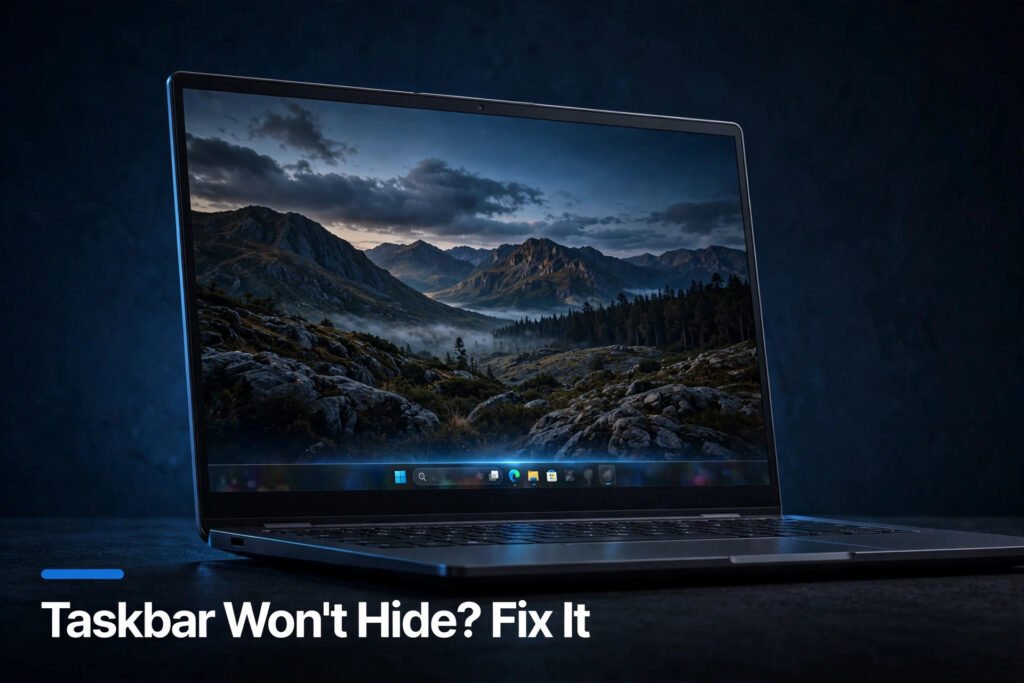
Taskbar not hiding in fullscreen YouTube Windows 11? The fastest fix is to restart Windows Explorer: press Ctrl + Shift + Esc to open Task Manager, find Windows Explorer under Processes, right-click it, and choose Restart. Your screen will flicker for a second, and the taskbar should now hide properly in fullscreen. If it comes back, the seven fixes below address every root cause, from stuck notifications to auto-hide settings.
Why This Happens
The taskbar refusing to hide in fullscreen is almost never a YouTube problem — it’s Windows holding the taskbar visible for a reason (or because of a glitch):
- Windows Explorer glitch. The Explorer process that draws the taskbar gets stuck in a bad state, especially after sleep/wake cycles or long uptimes. This is the most common cause by far.
- An app is demanding attention. When a program flashes its taskbar icon (a new message, a completed download, an update prompt), Windows keeps the taskbar visible so you notice. The flashing may be subtle.
- Auto-hide got toggled off. Windows updates and some full-screen games flip the “Automatically hide the taskbar” setting without telling you.
- A stuck notification. An unread system notification can pin the taskbar in place until you acknowledge it.
- The browser isn’t in true fullscreen. YouTube’s player fullscreen button and the browser’s F11 fullscreen are different modes, and the taskbar behaves differently in each.
Fix 1: Restart Windows Explorer
This resolves the issue for the majority of people because it resets the stuck taskbar process.
- Press Ctrl + Shift + Esc to open Task Manager.
- On the Processes tab, scroll down to Windows Explorer (it’s under “Windows processes” near the bottom).
- Right-click Windows Explorer and choose Restart.
- Your taskbar and desktop icons will disappear for a second or two, then come back. This is normal — your open apps and browser tabs are unaffected.
- Go back to YouTube, enter fullscreen, and check whether the taskbar hides.
If it works but the problem returns after sleep or reboot, the underlying trigger is usually Fix 4 (an app demanding attention) — keep reading.
Fix 2: Toggle “Automatically Hide the Taskbar” Off and On
If auto-hide was silently disabled, re-enabling it fixes the behavior — and even if it looks enabled, toggling it resets the setting.
- Right-click an empty area of the taskbar and choose Taskbar settings (or go to Settings > Personalization > Taskbar).
- Click Taskbar behaviors to expand it.
- If “Automatically hide the taskbar” is unchecked, check it.
- If it’s already checked, uncheck it, wait five seconds, and check it again. This toggle-off-and-on resets the underlying registry value.
- Test YouTube fullscreen again.
Note: With auto-hide on, the taskbar slides away in fullscreen and reappears when you move your mouse to the bottom edge. That’s the intended behavior — not a bug. For more taskbar options, see Microsoft’s guide to customizing the taskbar in Windows.
Fix 3: Exit Fullscreen and Re-Enter It Properly
Sometimes the issue is that the browser never entered true fullscreen mode.
- While the video is “fullscreen” with the visible taskbar, press F11 once. This toggles the browser’s own fullscreen.
- If the taskbar is still there, press F11 again to exit, then click YouTube’s fullscreen button (the square icon at the bottom-right of the video player).
- Try the reverse order too: YouTube fullscreen button first, then F11 on top of it. The combination of both (browser fullscreen + player fullscreen) is the most reliable for hiding the taskbar.
- To exit, press Esc (exits YouTube fullscreen) or F11 (exits browser fullscreen).
Why two fullscreens exist: YouTube’s player button only maximizes the video inside the browser window. F11 maximizes the browser window itself to cover the taskbar. You usually need the browser-level fullscreen for the taskbar to hide.
Fix 4: Dismiss the App Demanding Attention
A flashing taskbar icon is Windows saying “look at me” — and it holds the taskbar visible until you do.
- Look carefully along your taskbar for any icon with an orange/red flashing highlight or a badge count. Check the system tray (click the ^ arrow near the clock) too — the culprit often hides there.
- Common offenders: messaging apps (WhatsApp, Teams, Slack, Discord), email clients with new mail, completed downloads, Windows Update prompts, and antivirus alerts.
- Click the flashing icon to open that app and acknowledge whatever it wants — read the message, dismiss the alert, or close the pop-up.
- Return to YouTube fullscreen. The taskbar should now hide.
Proactive tip: If the same app does this every day, open that app’s settings and turn off its taskbar flashing / notification badges. You keep the notifications in the app; you just stop them from hijacking fullscreen.
Fix 5: Clear Stuck Notifications
An unread Windows notification can pin the taskbar visible even with nothing flashing.
- Press Win + N to open the Notification Center (or click the date/time in the bottom-right corner).
- Look for any pending notifications — especially system ones like Windows Update, security alerts, or “action needed” messages.
- Dismiss or act on each one. Click Clear all at the top if there’s a backlog.
- Check Do not disturb while you’re here: if it’s on, some notifications queue silently and still hold the taskbar. Toggle it off temporarily to let everything flush through, then clear them.
- Test fullscreen YouTube again.
Fix 6: Restart Your Browser
If the taskbar hides in fullscreen for every app except your browser, the browser’s own window state is corrupted.
- Close all windows of your browser (Chrome, Edge, Firefox — whichever you use), not just the YouTube tab. Check the system tray for a lingering browser icon and right-click > Exit if present.
- Reopen the browser, go to YouTube, and enter fullscreen fresh.
- If it still fails, check for a browser update: in Chrome/Edge, go to Settings > About (Chrome:
chrome://settings/help, Edge:edge://settings/help) and install any pending update, then relaunch. - As a deeper reset, try disabling hardware acceleration in the browser (Chrome/Edge: Settings > System > “Use hardware acceleration when available” > Off, then relaunch). A struggling GPU process can prevent clean fullscreen transitions.
Fix 7: Install Pending Windows Updates
Microsoft has fixed several taskbar auto-hide bugs through cumulative updates. If you’re behind, you may be hitting a bug that’s already patched.
- Go to Settings > Windows Update.
- Click Check for updates and install everything offered, including optional driver updates if listed.
- Restart when prompted — don’t postpone it; taskbar fixes only apply after the restart.
- After rebooting, test YouTube fullscreen before opening other apps, so you know the update (not something else) fixed it.
Taskbar Not Hiding in Fullscreen YouTube Windows 11 FAQs
Why won’t my taskbar hide when I fullscreen YouTube on Windows 11?
The most common reasons are a stuck Windows Explorer process (fixed by restarting it in Task Manager), an app flashing for attention, or the “Automatically hide the taskbar” setting being off. It’s rarely a YouTube bug — it’s Windows deliberately keeping the taskbar visible or a glitch in the process that draws it.
Should I use F11 or the YouTube fullscreen button?
Use both for the most reliable result. YouTube’s fullscreen button maximizes the video inside the browser; F11 maximizes the browser window itself over the taskbar. Press F11 first, then the YouTube fullscreen button. To exit, press Esc followed by F11.
The taskbar hides in fullscreen for games but not YouTube — why?
Games typically use exclusive fullscreen, which takes direct control of the display and always covers the taskbar. Browsers use borderless windowed fullscreen, which politely asks Windows to hide the taskbar — and Windows can refuse if an app is demanding attention or Explorer is glitching. That’s why the same taskbar hides for games but not for YouTube.
Does turning on auto-hide slow down my computer?
No. Auto-hide is just a visual behavior — the taskbar process runs either way. There’s no measurable performance difference, and it doesn’t affect gaming or video playback performance. The only adjustment is muscle memory: move your mouse to the bottom edge when you need the taskbar.