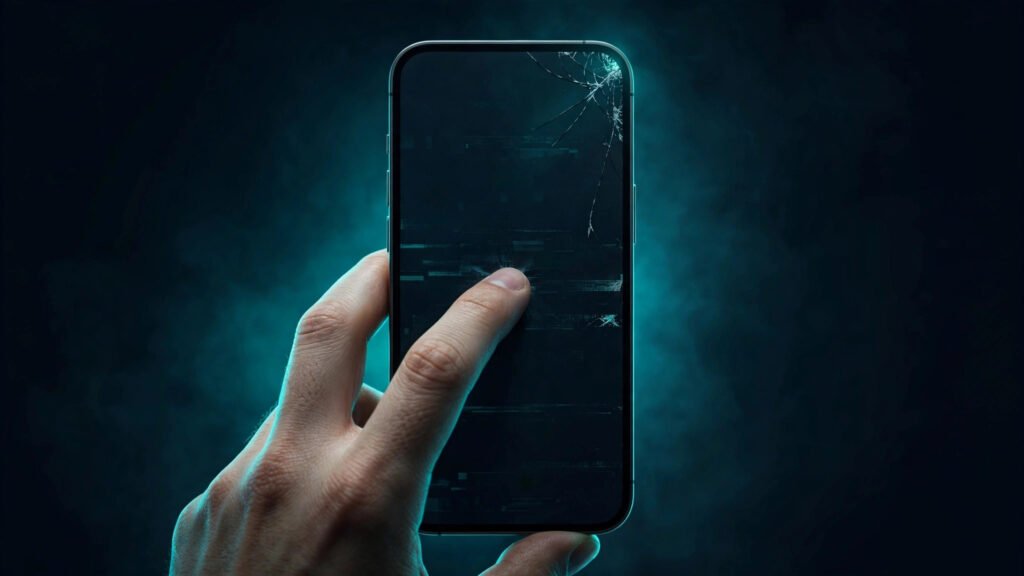
When your iPhone touch screen is not working, first work out which symptom you have — each points at a different cause. A screen that shows a picture but ignores every tap is usually a frozen system. One strip or corner that never responds usually means a damaged touch layer. A screen that taps, swipes, or types on its own — ghost touch — is often reacting to a charger, moisture, or a screen protector, not a broken display. The most important fix needs no touch at all: a force restart uses only the physical buttons. Work through the fixes in order, stopping as soon as touch returns — most cases clear in the first three.
Why This Happens
- The system froze after an update or app crash, leaving the touch layer with no working software.
- A cheap, damaged, or uncertified charger feeds unstable power into the phone, which the touch layer reads as phantom taps.
- A cracked, lifting, or badly fitted screen protector — or a case pressing on the edges — presses on the touch layer.
- Moisture, sweat, or dirt on the glass confuses the capacitive touch sensor.
- One frozen app covers the whole screen, so the entire touch screen looks dead.
- The touch layer itself (the digitizer) is damaged after a drop, water exposure, or a screen replacement.
1. Force Restart the iPhone — No Touch Needed
Start here: it needs no touch, clears a frozen system, and erases nothing — a normal power-off needs the on-screen slider, which you cannot drag with dead touch.
For iPhone 8 and later, including iPhone SE (2nd and 3rd generation) and all Face ID models: press and quickly release Volume Up, then Volume Down, then press and hold the Side button until the Apple logo appears — keep holding past 10 seconds if needed. For iPhone 7 or 7 Plus: hold the Side button and Volume Down together until the logo appears. For iPhone 6s or earlier, including the original iPhone SE: hold the Home button and the Side (or Top) button together until the logo appears.
If touch works again, the system had frozen — still install any pending iOS update (Fix 5). If the logo never appears, charge the phone for 30 minutes first — a flat battery can look like a dead screen — then try again.
2. Unplug the Charger and Test on Battery Power
A faulty or low-quality charger sends unstable power into the phone, which the touch layer reads as phantom taps — ghost touch — or an unresponsive screen while plugged in.
Unplug the cable and any other Lightning or USB-C accessory, then test on battery power. Apple gives the same advice on its support page: disconnect any Lightning or USB-C accessories, and if the screen works after removing one, try a different outlet, cable, or charger. If touch works fine unplugged, the charger or cable is the problem — replace it with Apple-certified (MFi) ones. If ghost touch continues unplugged, the cause is elsewhere.
3. Clean the Screen and Remove the Case and Screen Protector
The touch layer reads tiny changes in electrical charge from your finger, so anything on the glass can interfere. Wipe the screen with a soft, lint-free cloth — oil, makeup, or dried sweat can look like a software fault. If the screen is wet, dry it completely and do not charge until it is dry.
Then remove the case and screen protector and test again. A lifting, cracked, or badly fitted protector can create dead spots or ghost touches, and so can a case pressing on the display edges. If touch works with the protector off, the protector was the fault — replacing it costs far less than a new screen.
4. Check Whether One App or the Whole Screen Is Affected
Before assuming the whole screen is broken, check whether the fault follows one app. If the screen froze inside one app, force restart (Fix 1), then test touch in another app. If touch works everywhere except one app, that app is the problem — delete and reinstall it, and check for an update.
5. Update iOS to the Latest Version
If touch works again after a restart, or works intermittently, check for an iOS update — Apple fixes touch and responsiveness bugs in point releases, and a phone untouched since its first setup is a suspect after a major update. Go to Settings > General > Software Update and install whatever is pending.
As of 9 November 2026 the latest public release is iOS 27.2.1, a bug-fix and security update for iPhone 11 and later; iOS 26 users got 26.7.3 the same day. Install it, restart, and test touch. If the screen is completely unresponsive and a force restart did not bring it back, skip to Fix 7 — Software Update is out of reach.
6. Free Up Storage if Touch Is Slow or Laggy
This fix is for a different symptom: touch that works but is slow, jumpy, or misses taps, especially when apps open slowly. A nearly full iPhone leaves little room for the system, so the whole phone — including touch — can feel sluggish.
Go to Settings > General > iPhone Storage. If it is nearly full, delete unused apps, downloaded videos, and large message attachments. The guide in iPhone Storage Full? How to Free Up Space walks through the same cleanup, including offloading an app — removing it but keeping its data. If touch is completely dead rather than slow, storage is not the cause — skip to Fix 7.
7. Restore the iPhone With a Computer
If the screen is still unresponsive after a force restart, a charger test, and an update, the software itself may be damaged beyond what a restart can clear. A restore through a computer reinstalls iOS cleanly — the last software step before concluding it is hardware.
First, back up if you can — if touch works even briefly, back up to iCloud or a computer, because a restore erases the phone. Then connect the iPhone to a Mac or Windows PC, open Finder (Mac) or iTunes (Windows), and select it. If the phone does not appear, put it in recovery mode — same sequence as Fix 1, but keep holding past the Apple logo until the recovery-mode screen appears — then choose Restore. Do not do this first, or if the screen is visibly lifting from the frame — a swollen battery can push against the display, a safety issue, not a software one.
If touch works after the restore, test it before restoring your backup, so a bad app or setting does not bring the fault straight back.
8. Get Service — a Dead Spot That Never Moves Is Hardware
If the same dead strip or corner is there after every restart, on a fresh setup, and with the protector off, the touch layer is damaged — no setting will repair it. The same applies if ghost touch continues with nothing plugged in, no case, and a clean, dry screen — especially after a drop, liquid exposure, or a screen replacement.
Book service with Apple or an Apple Authorized Service Provider and tell them what you found: which part of the screen is dead, whether it happens only while charging, and whether it started after a drop or a repair.
Troubleshooting Notes
- A dead zone that stays in the same spot across restarts, apps, and with the protector off is hardware — skip to Fix 8.
- Ghost touch only while charging points at the charger, not the screen.
- Do not press hard on a cracked or unresponsive screen to force a tap — a force restart is the safe step.
- If touch works intermittently, check Settings > Accessibility > Touch — Touch Accommodations changes how the screen responds to taps and holds.
- Do not factory-reset the phone as a routine touch fix. A force restart (Fix 1) and a computer restore (Fix 7) are the two resets that matter, and the restore needs a backup first. If the screen is lifting from the frame, stop and get service — a swollen battery may be pushing on the display.
FAQs
Why is my iPhone touch screen not working after an update?
An update can leave the system frozen, switch on a touch-related accessibility setting, or expose a bug the next update fixes. Force restart first, then install the latest iOS — as of 9 November 2026, iOS 27.2.1.
Why does my iPhone screen tap things by itself?
That is ghost touch, often caused by moisture on the glass, a faulty or uncertified charger, a badly fitted screen protector, or a failing touch layer. Unplug the charger, dry the screen, and remove the protector — if it keeps happening unplugged, the display is the likely cause.
Why does my touch screen only fail while charging?
Inconsistent power from a cheap or damaged charger can disrupt the touch layer, so the screen misreads touches only while plugged in. Unplug the phone and test it on battery — if it behaves normally, replace the charger and cable with Apple-certified (MFi) ones.
Will a force restart delete my photos or data?
No. A force restart only reboots the phone without touching photos, messages, apps, or other personal data. A computer restore (Fix 7) is different: that erases the phone, so back up first.
What does a dead spot on the screen mean?
It means one area of the touch layer is not registering your finger while the rest works. If the same spot stays dead after a restart, with the protector off, and on a fresh setup, the touch layer is damaged and the screen needs service.