Windows 11 microphone not working after update usually means it lost a permission, not a driver. Go to Settings > System > Sound, look under Input, and speak while watching the volume bar. If the bar moves, the microphone works — the fault is a permission, the wrong input, or one app’s setting. If it stays flat, Windows is not hearing the mic at all.
A mic that worked last week and died overnight after a feature update usually lost a permission. Fixes 1 to 3 are the quick checks, 4 and 5 fix the software, 6 and 7 fix the driver, and 8 tests the hardware.
| Symptom | Most likely cause | Fix |
|---|---|---|
| No app can hear you, mic worked before | Privacy switches reset by the update | Fix 1 |
| Mic works in one app but not another | App blocked, or wrong mic in that app | Fixes 1 and 3 |
| Level bar in Sound settings never moves | Wrong input, muted, or disabled device | Fixes 2 and 5 |
| Mic or headset not detected at all | Driver problem after the update | Fix 6 |
| Voice is too quiet | Input volume set low | Fix 5 |
| Webcam mic silent | Camera privacy switch is off | Fix 1 note |
1. Turn On All Three Microphone Privacy Switches
This is the fix most people miss, and the one an update is most likely to have broken. Windows 11 has three layered switches, and if any one is off, apps see no microphone at all. Go to Settings > Privacy & security > Microphone and turn on Microphone access, then Let apps access your microphone, then scroll down and turn on Let desktop apps access your microphone.
The third switch matters most after an update. The list under the second switch shows only Microsoft Store apps. Zoom, Teams, Discord, WhatsApp Desktop and Chrome are desktop apps. For those programs, the third switch decides everything. Microsoft confirms this in Fix microphone problems: if your microphone is not detected after updating Windows 11, you may need to give your apps permission to use it again.
If your microphone is part of a webcam, Settings > Privacy & security > Camera must be on too. After turning the switches on, close the app and reopen it.
2. Pick the Right Input and Watch the Level Bar
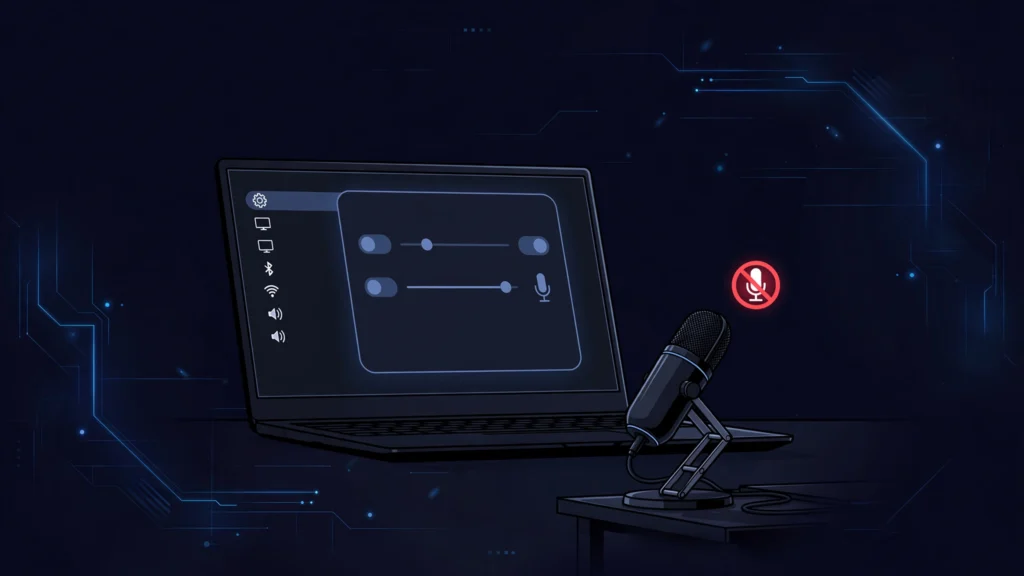
An update can silently change which microphone Windows uses — a laptop’s built-in mic, a headset, a webcam, or a monitor’s mic can all be inputs. Go to Settings > System > Sound and, under Input, pick the microphone you actually want to use. Then speak and watch the volume bar beside it. If it moves, the mic is working — go back to Fix 1 or on to Fix 3.
Click the microphone’s name, then use Start test: speak, stop the test, and Windows reports the input level. If the test shows nothing, the problem is the device or its driver — Fixes 5 and 6 are the ones that matter.
3. Choose the Microphone Inside the App and Check Its Mute
Fixing the Windows setting does not fix the app’s own setting. Zoom, Teams, and Discord each keep their own microphone choice, and an update can leave the app pointing at a device that no longer exists. Open the app’s audio settings and pick the same microphone you chose in Fix 2, and check the app’s mute button and input volume slider.
Also check the physical mute. Many headsets have a mute button on the cable or earcup, and some laptops and keyboards have a microphone mute key. A muted headset looks exactly like a broken microphone, except in the level bar.
4. Run the Recording Audio Troubleshooter
Windows includes an automated check for input devices. Go to Settings > System > Sound, scroll down to Advanced, and under Troubleshoot common sound problems choose Input devices. You can also run it from Settings > System > Troubleshoot > Other troubleshooters, where it appears as Audio or Recording Audio.
Let it finish and apply what it suggests, then test the microphone again in the Sound settings level bar. It will not fix a permission problem (Fix 1) or a wrong device choice (Fix 2), so run those first.
5. Raise the Input Volume and Re-enable a Disabled Mic
A microphone that works but sounds faint is usually just turned down. Go to Settings > System > Sound, click your microphone under Input, and raise the Input volume slider — set it to at least 80% while testing.
If the microphone does not appear in the Input list at all, it may be disabled rather than broken. Right-click the speaker icon in the taskbar, choose Sound settings, then open More sound settings and go to the Recording tab. Right-click your microphone and choose Enable if offered, then right-click it again and choose Set as Default Device and Set as Default Communication Device.
6. Fix the Driver in Device Manager
Driver trouble is the usual reason a microphone disappears after an update: the update can replace the manufacturer’s audio driver with a generic one. Right-click Start and open Device Manager, expand Audio inputs and outputs, find your microphone — it may be listed as Microphone Array, Realtek Microphone, or by the headset maker’s name — right-click it and choose Update driver, then Search automatically for drivers.
If the problem began right after an update, roll back instead: right-click the audio device under Sound, video and game controllers, choose Properties, go to the Driver tab, and click Roll Back Driver if available. If neither works, uninstall the device: right-click it, choose Uninstall device, tick the option to remove its driver, restart the PC, and let Windows install the driver again. If Windows still finds nothing, download the driver from your PC or headset maker’s support page.
7. Restart the Audio Services and Check for Updates
Audio on Windows depends on services that can stall after an update. Press Win + R, type services.msc, and find Windows Audio and Windows Audio Endpoint Builder. Right-click each one, choose Restart, then test the microphone again.
Then go to Settings > Windows Update and select Check for updates. Microsoft often ships a follow-up fix for a broken audio driver. Install it, restart, and test the microphone before moving on to hardware checks.
8. Test the Hardware on Another Port — or Another Device
If the level bar still never moves, stop changing settings and test the hardware itself. For a USB microphone or headset, plug it into a different USB port — preferably one directly on the PC rather than a hub. For a Bluetooth headset, unpair it and pair it again; the steps are in our guide to Windows 11 Bluetooth Not Working After Update. For a 3.5 mm headset, push the plug fully in — a half-seated plug records silence.
The decisive test is another device: plug the microphone into a different PC or a phone and speak. If it works there, the fault is in your Windows installation, not a new microphone. If it fails everywhere, the microphone itself has failed.
Troubleshooting Notes
- Feature updates can reset the microphone privacy switches, so a mic that worked last week can go silent overnight. After any major update, check Settings > Privacy & security > Microphone first.
- Desktop apps (Zoom, Teams, Discord, browsers, WhatsApp Desktop) need the third switch — Let desktop apps access your microphone. They do not appear in the Store-apps list.
- If the level bar in Settings > System > Sound moves when you speak, the microphone works. The fault is a permission, the wrong input, or one app’s setting — do not reinstall drivers for a working mic.
- If the microphone is part of a webcam, Settings > Privacy & security > Camera must be on, or the webcam’s mic stays silent.
- Do not buy a new microphone until you have tested the old one on another device. A mic that works elsewhere is a Windows problem.
FAQs
Why is my Windows 11 microphone not working after update?
A feature update can reset the microphone privacy permissions or replace the audio driver with a generic one. Check Fix 1 first — all three switches on — then roll back or reinstall the driver in Device Manager (Fix 6).
Why does my mic work in one app but not another?
That pattern almost always points to a permission or an in-app setting rather than hardware. Check that the app is allowed under Settings > Privacy & security > Microphone — desktop apps need the Let desktop apps access your microphone switch — and that the app itself has the right microphone selected.
How do I test if my microphone is working in Windows 11?
Go to Settings > System > Sound, pick your microphone under Input, and speak while watching the volume bar. If it moves, Windows hears you. You can also click the microphone’s name and use Start test for a measured input level.
Why is my microphone too quiet on Windows 11?
The input volume is probably set low, or the wrong mic is selected. Raise the Input volume slider to at least 80% in Settings > System > Sound, and check you are speaking into the right mic.
What if Windows doesn’t detect my microphone at all?
Reinstall the audio drivers: in Device Manager, uninstall the audio devices under Sound, video and game controllers (tick the option to remove the driver), restart, and let Windows install them again. If it still does not appear, test the microphone on another device.