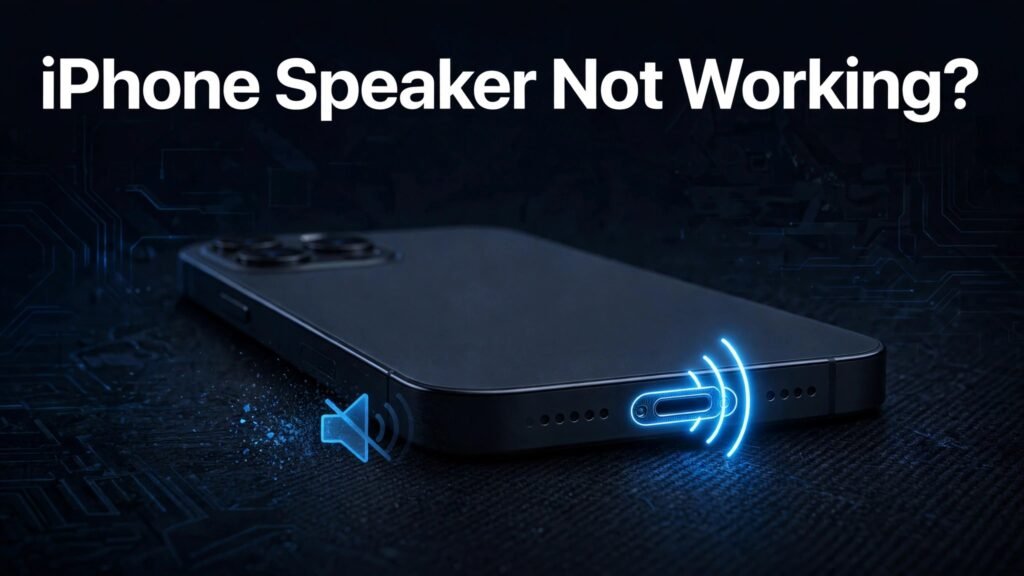
iPhone speaker not working? First work out which speaker you mean. Your iPhone has two: the earpiece at the top, held to your ear on calls, and the loudspeaker at the bottom, which plays ringtones, music, and videos. If calls sound fine on speakerphone but the earpiece is silent, the problem is narrow. If nothing makes a sound anywhere, it is wider — and often a setting, not a broken speaker.
The fastest test takes about 30 seconds: drag the ringer slider in Settings and listen. If the ringtone plays, the loudspeaker works and the fault is a setting or one app.
Why This Happens
- Silent mode is on — the switch is flipped, or the Action Button is set to Silent mode.
- Sound is going elsewhere: forgotten AirPods, a car stereo, or a Bluetooth speaker.
- Do Not Disturb or another Focus mode is silencing calls and notifications.
- The speaker or receiver opening is blocked by a case, screen protector, lint, or dust.
- The phone thinks headphones are plugged in, so it routes audio to an empty jack.
- A glitch after an update left the audio system stuck, or the speaker failed after water or a drop.
1. Run the 30-Second Ringer Test
Diagnose before changing anything: go to Settings > Sounds & Haptics and drag the Ringtone and Alerts slider back and forth. The phone plays the ringtone through the bottom loudspeaker. This is Apple’s own speaker test, published 16 March 2026.
If the ringtone plays clearly, the loudspeaker works — the fault is a setting or one app, so skip to Fix 2 and Fix 4. If you hear nothing, or the speaker button is dimmed, Apple says the speaker might need service. Run Fixes 2, 3, and 6 first — a muted phone and a blocked opening look identical to a dead speaker.
2. Turn Off Silent Mode — Switch or Action Button
Silent mode is the most common cause, and it is easy to trigger by accident — the switch catches on a pocket, or the Action Button gets pressed in a bag. It stops ringtones and alerts, though media and alarms can still play.
iPhone 15, 15 Plus, and earlier models, including iPhone SE, have a Ring/Silent switch on the left edge: flip it toward the display so no orange shows. iPhone 15 Pro and 15 Pro Max, every iPhone 16 and 17 model, and iPhone 18 Pro models have an Action Button instead: press and hold it until the screen confirms Silent Mode is off. If the button was reassigned, it will not change Silent mode — check Settings > Action Button.
3. Check Where the Sound Is Actually Going
If the ringer test was silent but the phone is not in Silent mode, sound may be playing somewhere you cannot hear it. iPhones reconnect to Bluetooth devices automatically, so audio can be going to AirPods in another room, a car stereo, or a Bluetooth speaker still switched on.
Open Control Center, tap the AirPlay icon, and make sure iPhone is selected. Then go to Settings > Bluetooth and disconnect anything unused, or turn Bluetooth off and test again.
Also check the stuck-headphone trap: if the phone thinks wired headphones are connected, it routes everything to an empty jack. Plug wired headphones in firmly, play something, then unplug them and test. Lint in a Lightning port can cause this — pick it out with a dry wooden toothpick, never a metal pin.
4. Turn Off Do Not Disturb and Check Focus Modes
Do Not Disturb silences calls, alerts, and notifications, and it is easy to switch on from Control Center by accident — or leave on after a scheduled Focus ends late. Media still plays, which makes it confusing: YouTube has sound, but calls do not ring.
Open Settings, tap Focus, tap Do Not Disturb, and make sure it is off. Then check the other Focus modes — Sleep, Driving, Work, or any custom one. A crescent-moon icon in the status bar means a Focus mode is on.
While here, press Volume Up: if the volume is at zero, that is the whole fault. A timer alarm that rings proves the speaker works even when a ringtone does not.
5. Test the Earpiece and the Loudspeaker Separately
If the ringer test played sound but calls are still a problem, test the two speakers against each other. They are separate hardware, and knowing which one fails tells you exactly where the fault is.
Make a normal call. If you cannot hear the other person, tap Speaker to switch to speakerphone. If the call is suddenly clear, the earpiece is faulty and the loudspeaker is fine. First check the receiver opening at the top is not blocked (Fix 6).
If the call is still silent on speakerphone too, Apple points at the network: try again later, or from a different location. A call that crackles only on mobile data is a signal problem. If sound fails in one app only, the fault is that app: force-close it, update it, or delete and reinstall it. The same fix is in iPhone Apps Crashing After iOS Update.
6. Remove the Case and Clean the Speaker Openings
A case or screen protector covering the grille, or lint packed into it, can muffle sound so badly the speaker seems dead. This fix costs nothing.
Take off the case and screen protector, then look at the speaker opening at the bottom and the receiver slot at the top. If either is blocked, clean it with a small, soft-bristled brush — a clean, dry toothbrush works. Apple says: no pins, no compressed air, and no liquid.
If the phone got wet, water in the speaker makes sound muffled until it dries. Leave it upright in a dry place and do not charge it until the openings are dry — no hair dryer, no rice. Then run the ringer test again.
7. Restart the iPhone and Update iOS
If the settings are right, nothing is stealing the audio, and the openings are clean, the audio system itself may be stuck. A restart clears the temporary state an update or a crashed app can leave behind.
Hold the Side button and either Volume button until the power-off slider appears, drag it, wait 30 seconds, then hold the Side button until the Apple logo appears. Test the ringer slider as soon as the phone is back.
Then check for an iOS update — Apple fixes audio bugs in point releases. Go to Settings > General > Software Update and install whatever is pending. As of 9 November 2026 the latest release is iOS 27.2.1, for iPhone 11 and later (iOS 26.7.3 on iOS 26).
8. Reset All Settings — Then Get Service if It Is Still Silent
If every fix above has failed, one buried setting may be the cause. Go to Settings > General > Transfer or Reset iPhone > Reset > Reset All Settings. This returns Wi-Fi, Bluetooth, Focus, and sound settings to their defaults, but it does not delete photos, apps, or messages. Test the ringer slider again after the reset.
If the speaker is still silent or distorted at every volume, the hardware has most likely failed. Book service with Apple or an Apple Authorized Service Provider and tell them what you found: whether the ringer test was silent or distorted, whether the earpiece or the loudspeaker failed, and whether it started after water, a drop, or an update. Do not open the phone yourself.
Troubleshooting Notes
- If the ringtone plays, the loudspeaker works — check Silent mode, Bluetooth, and Focus (Fixes 2–4) before booking a repair.
- Sound through AirPods or a car stereo but not the speaker means audio is routed elsewhere. Check the AirPlay output first.
- Sound failing in one app only is that app’s fault. Force-close, update, or reinstall it.
- Never put a pin, compressed air, or liquid into the openings. A soft-bristled brush is the only cleaning tool Apple recommends.
- Do not factory-reset for a speaker fault. A restart (Fix 7) and Reset All Settings (Fix 8) are the only resets that matter, and neither erases data.
- If the phone shows a headphone icon with nothing plugged in, plug wired headphones in and out once and check the port for lint.
FAQs
Why is my iPhone speaker not working after an update?
An update can leave the audio system stuck or reset a Focus mode. Restart the phone, install the latest iOS (27.2.1 as of 9 November 2026), and test the ringer slider.
Why does my iPhone only play sound through headphones?
It is routing audio to a Bluetooth device, or thinks wired headphones are connected. Turn Bluetooth off and plug wired headphones in and out once.
Why is my iPhone speaker muffled or distorted?
The opening is usually blocked by a case, screen protector, lint, or water. Remove the case, clean the grille with a soft brush, and let the phone dry fully if it got wet. If distortion stays at every volume, the speaker may be damaged.
Why can I hear calls on speakerphone but not on the earpiece?
The earpiece and loudspeaker are separate hardware. If speakerphone works, the earpiece is faulty — first check the receiver slot is not covered by a screen protector or dirt.
Will resetting all settings delete my photos?
No. Reset All Settings only returns system settings to their defaults. Photos, messages, and apps stay on the phone.